Standard Reports
A Majestic Standard Report is a quick way to interrogate the most important data for your site, including top backlinks and anchor text. It gives you filtering and sorting options to let you drill down deeper than possible in Site Explorer.
The overview
A Standard Report presents what we believe is the most important data for any given domain, subdomain or URL in our index, including your own website or that of a competitor.
The Standard Report has three main sections - an overview, a backlinks view, and an anchor text view.
Subscribers can create Standard Reports for any domain (up to the allowance determined by their subscription plan).
You may create and view Standard Reports from the "My Reports" page when you are registered and logged in.
The Standard Report will analyse from 5000 backlinks, depending on your plan. The Standard Report isn't just about what you can see. Like many parts of our website we support the downloading of the CSV data which makes up the report.
Three main sections
Overview
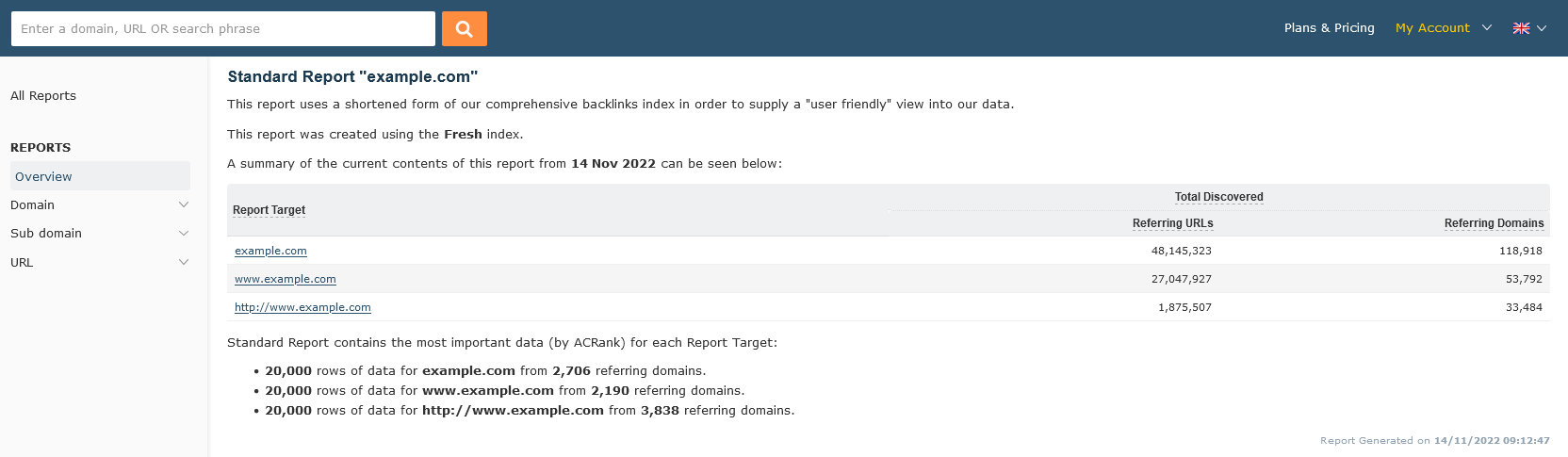
This screen shows the top level information on the backlinks we have and the amount available in this Standard Report.
The Backlinks View
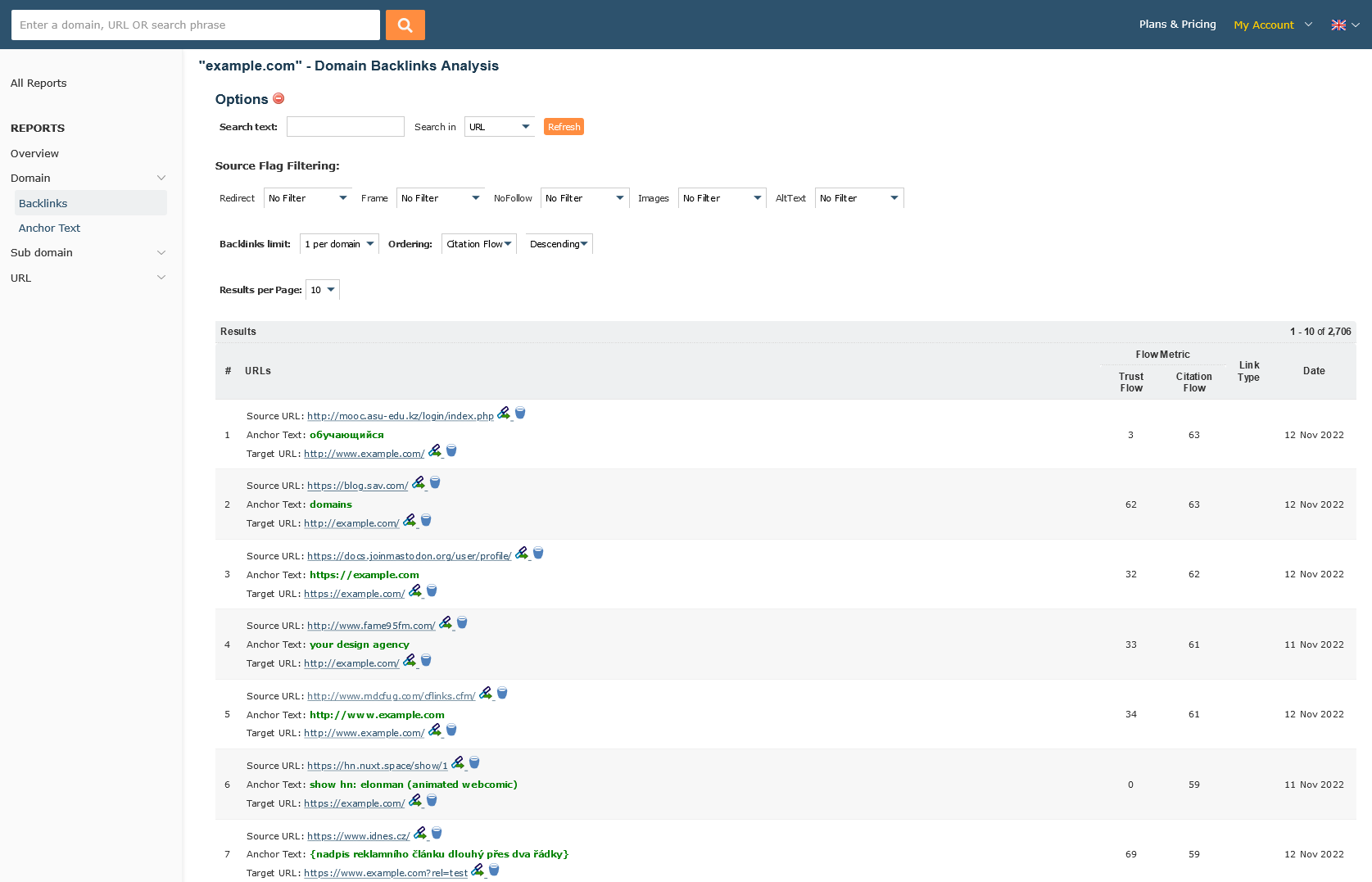
This report is split into three different parts - focused at domain, subdomain, and URL level. This allows you to focus on a particular page (it could be a landing page, or the home page), the subdomain which it is hosted on, and the entire domain. There are a number of filtering and ordering parameters which can be adjusted for live updates - the report updates as you alter the filters.
The Anchor View
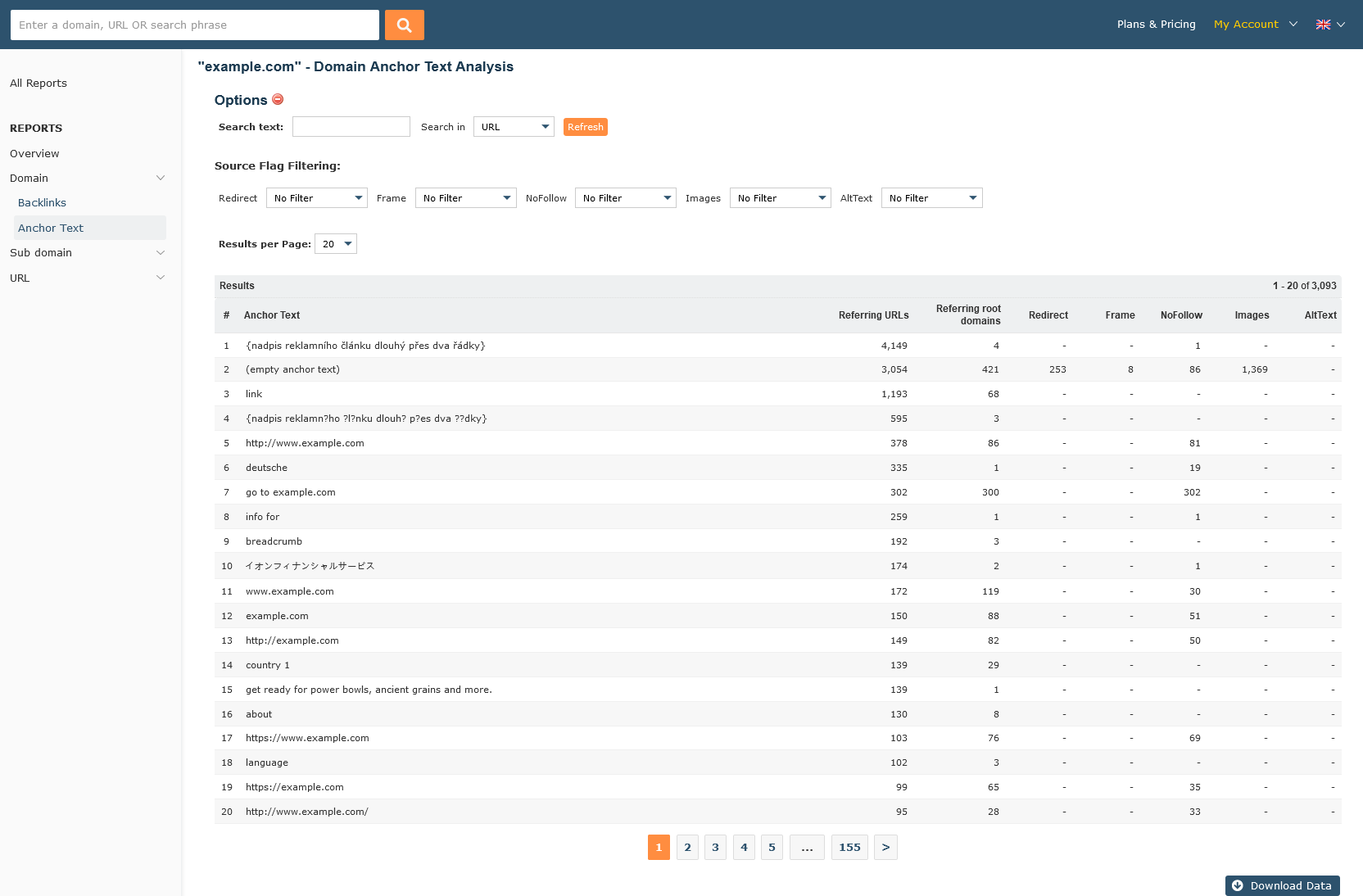
Like the backlinks view, The anchor view has three tiers - domain, subdomain and URL. The anchor view focuses on anchor text and counts - we show you the unique anchor text phrases for the backlinks in this report, and like the backlinks section, filters can be provided to limit the results to those you are interested in.
Creating a Standard Report
A Standard Report, like an Advanced Report, is created from the "Create Report" facility at the bottom of the "My Reports" page.
A subscription gives you the ability to create a number of Standard Reports each month - the higher the subscription package, the more reports you can generate, and the more links we will provide in each report.
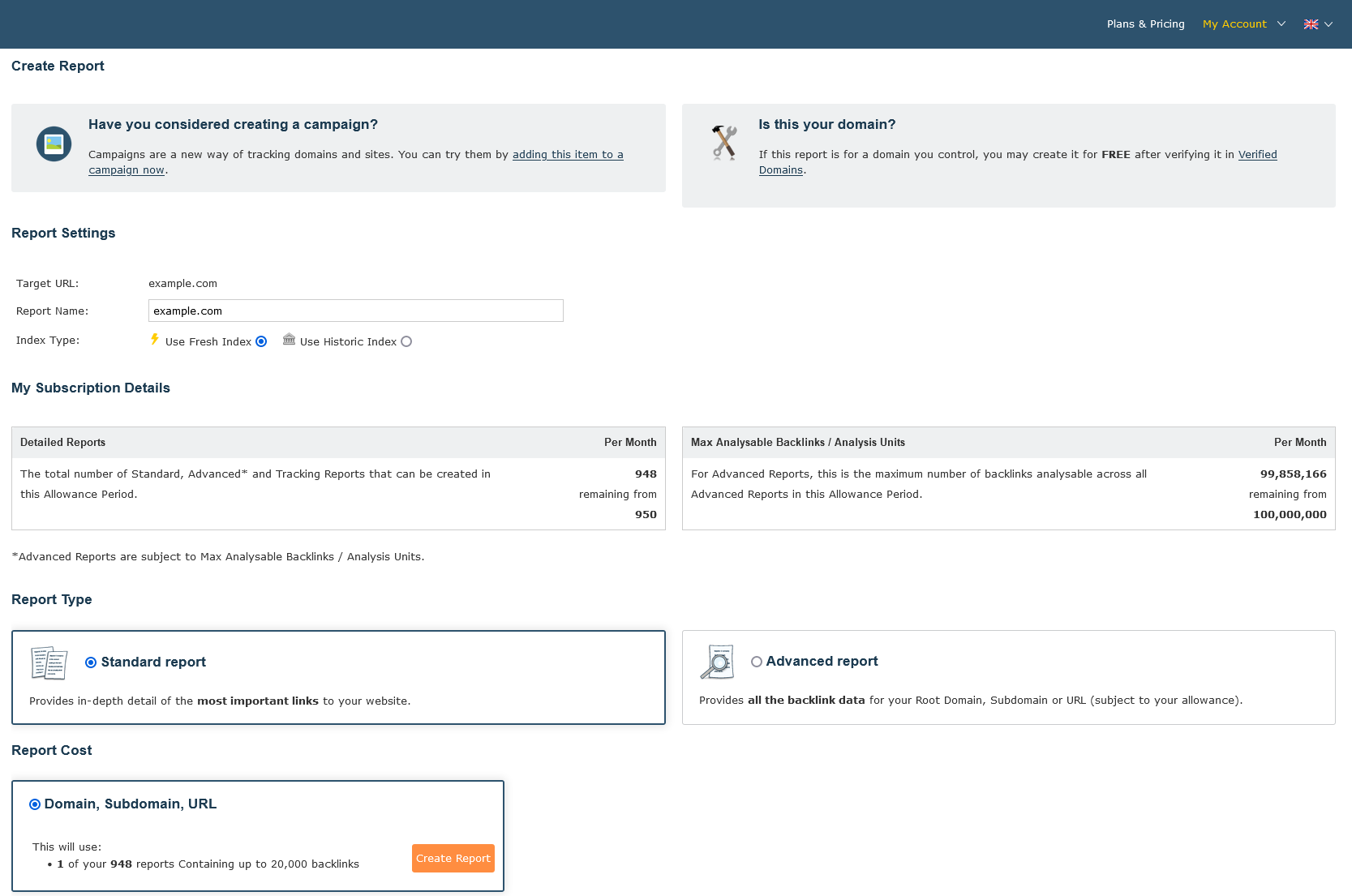
In order to create a standard report, just make sure "Standard Report" is selected, and click the "Create Report" button. If you want, you can change the name of the report - this doesn't affect the contents of the report - just the name shown in the "My Reports" page and elsewhere.
Report created

My reports
And that's it! You can now return to the "My Reports" screen, and select the "Standard Report".

Act on Standard Reports
You should now understand what a standard report is, and how to create one. In order to get the best out of our system we recommend keeping up-to-date on our blog - we regularly run articles on how to get the most out of Majestic.